

Wanting to get a notification directly in your Discord server when an Instagram Account makes a new post?
The MEE6 Instagram Alerts plugin can automatically announce new posts for you. Here is a step-by-step guide for setting up your MEE6 bot to automatically post a link to new Instagram posts in your discord server.
How to configure MEE6 on your server to post new videos announcements
Go to https://mee6.xyz/dashboard. If you already have MEE6 on your server, skip to 5.
Log in with your Discord account.

Authorize the MEE6 bot to access your account.

Select the Discord server you wish to add MEE6.
Now, go to your Discord Server Settings (⚙), Roles, and find the role associated with your bot.
Next, scroll down to the bottom and enable the Administrator option, and save the changes.
Alternatively, you can go to the chosen announcement channel's settings, select permission, and add the Bot's role, enabling: View Channel, Send Messages, Embed Links, Attach Files, and Mention @everyone and @here and/or all roles.


How to configure the Instagram Alerts plugin
Go to https://mee6.xyz/dashboard.
Click on Dashboard and then Click on Instagram Alerts.
Click on Activate Instagram Alerts.
Next, select the New Instagram Account option.

Here, you will be able to: Select the Instagram account. Customize the message you want MEE6 to post. Select the announcement channel.
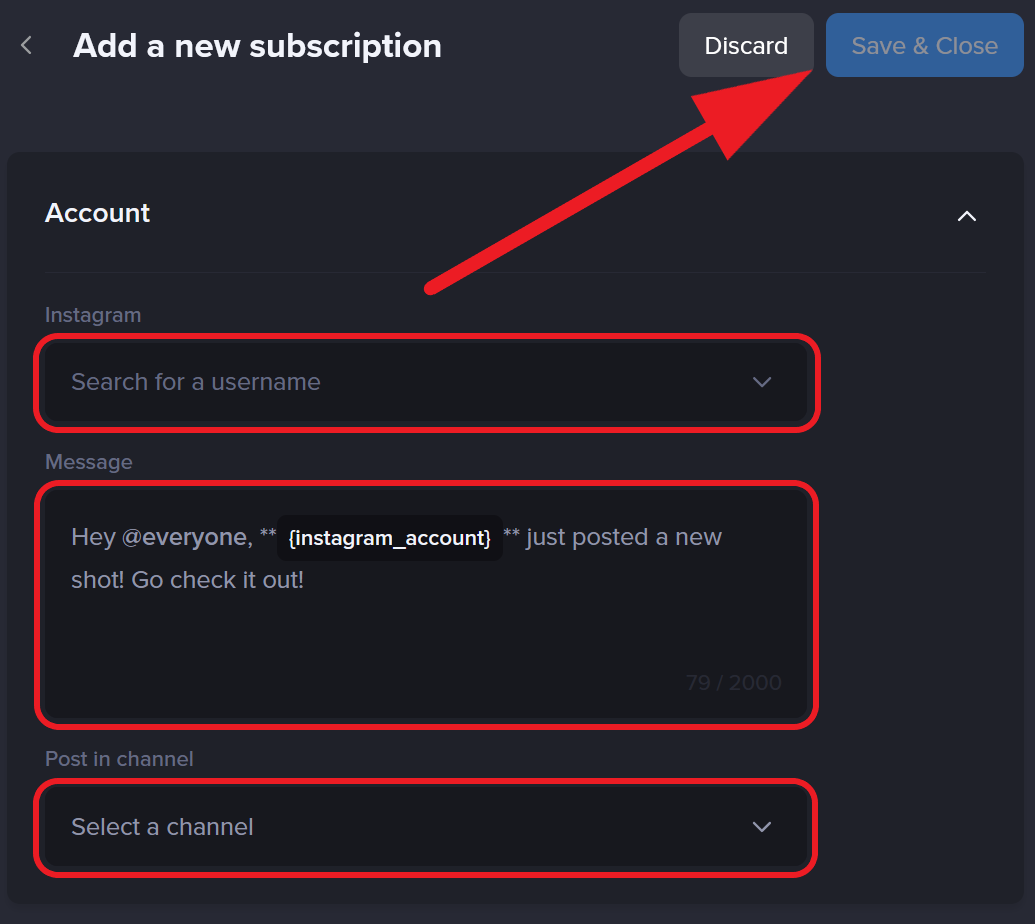

All set!
That’s it! Now, you just need to wait for a new post from your favorite Instagram Account and MEE6 will automatically notify you.
Frequently Asked Questions - Instagram Alerts Plugin
How fast will I receive my notifications?
Thanks to the current API technology, we can deliver your notification within 3h, but it might take just a couple of minutes in some cases, taking no longer than 6h.
Can a restricted or private Instagram be added to Instagram Alerts?
Only accounts that are not restricted and are public can get their posts announced by MEE6.
Can I mention @everyone, @here, other roles, and members in my notifications?
Certainly yes, you just need to ensure your bot can mention those roles in your server settings (roles menu).
Then, simply mention those roles when configuring the message. Otherwise, you can type the variables <@&role_id> or <@user_id> in the message field.
If you have any issues with the plugin, do not hesitate to join our support server! ✌