

Adding MEE6 to your server: Go to the MEE6 dashboard and login into your Discord account, if needed. Then select the Discord server you want to set up the Moderation, to which we recommend giving the administrator permission, visiting the role list in the server settings, and bringing the MEE6 role higher in the list to perform all actions.
Enabling the Moderator Plugin: Now that you have the bot in your server, you need to go to the Moderator plugin, located on the left-hand side of the page on the plugins' menu, and enable it.

Configuring the Moderator plugin: We have 4 main tabs that will allow you to increase your server management automation according to your Discord server needs. 4.1. Automod: Empower your server with 3 options of automation for your moderation. 4.1.1. AutoMod Rulesets: You can configure MEE6 to filter Bad words, Spamming users, Unwanted Links, and much more. Use the dropdown menu to select what moderation style you fancy.

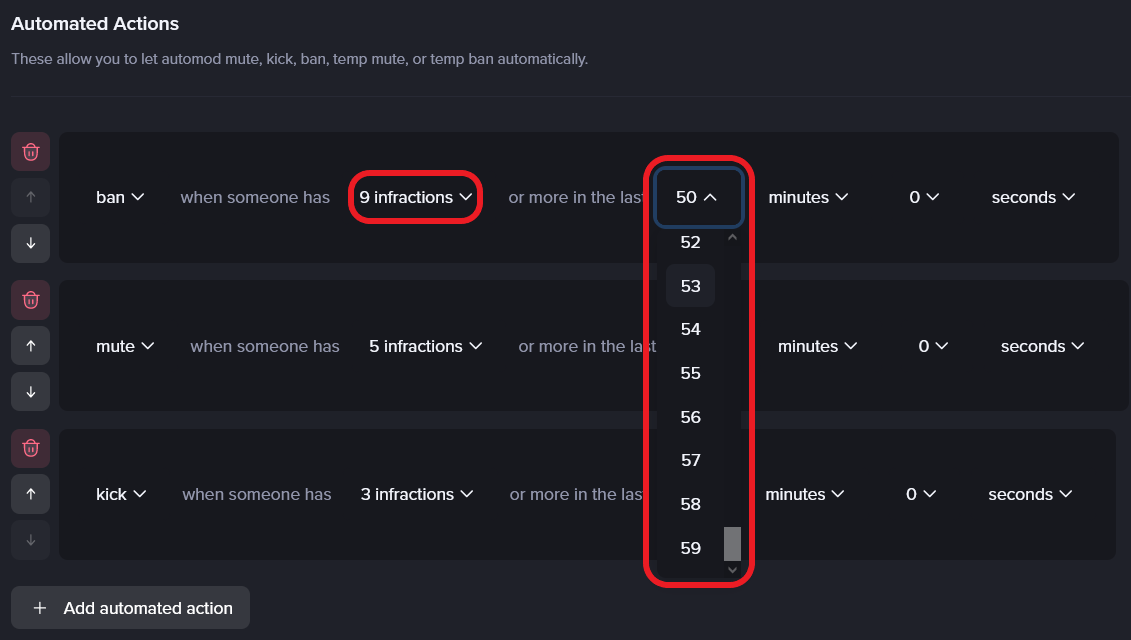
4.1.2. Automated Actions: Uses the infractions that users triggered from the AutoMod Rulesets to take an action for you. This way, people who break the rules 3 times in a row will be punished with a mute or even ban, for example, depending on your needs. Note: Actions must have their infraction trigger number descending. It means that if you have three actions (one being triggered by 3 infractions, the other by 5, and the other by 9, the action with 9 infractions should be placed on the very top and the action with 3 infractions at the very bottom). You need to click on the dropdown menus to configure it.
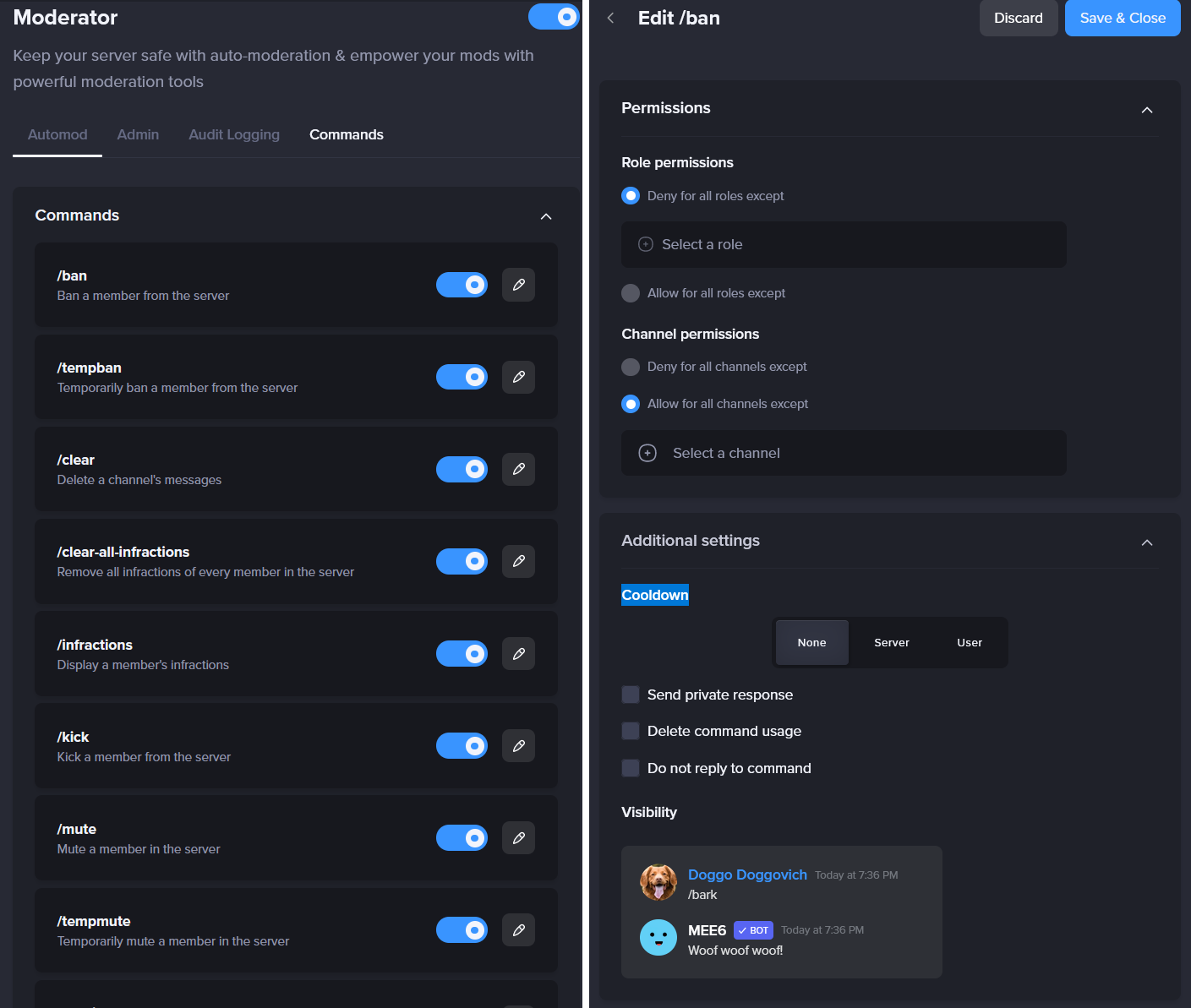
4.1.3. Restricted Channels: Here to make the communication clear and tidy on your server so you just need to select a channel of your preference and select if you want it to be image, video, or bot commands only, keeping in mind you can mix it up. 4.2. Admin: This tab helps you to identify all the roles with admin on your server (you will get a 🚫 when trying to remove them), but also allows you to add more roles, such as moderators, which you would like to be immune to MEE6's moderation filters. 4.3. Audit Logging: You can keep track of what the members of your Discord Server have been doing as this function allows you to see the content of deleted and edited messages, for example, but also other important events. You just need to select a channel, the events you need to be tracked and MEE6 will do the rest for you. 4.4. Commands: Here you can configure important settings of your Moderator Commands. Simply enable them, and click on the edit pencil icon to allow or deny roles and channels from using the command, along with some advanced settings to help the chat to be clean such as "Delete command usage".
Do not forget to save your changes!


Frequently Asked Questions - Moderator Plugin
Can I configure MEE6 to take action automatically when users break a rule?
Thanks to Automated Actions MEE6 can take a specific action after a certain amount of rules are broken by the member.
1) Visit the dashboard;
2) Go to the moderator plugin and start configuring the Automation Actions to suit your server's needs. Before you start, check the following:
The infraction numbers directly influence how the Automated Actions work.
Therefore, ensure to place the highest infraction number block on the top and the lowest at the bottom.
For example, if you have one block set to be triggered at 2 infractions, another at 5 infractions, and another at 8 infractions, the correct order descending: 8 Infractions (Top), 5 Infractions (Mid), and 2 Infractions (Bottom).
Is it possible to make my team members immune to MEE6 moderation?
Certainly yes, you just need to visit your dashboard, go to the moderator plugin, and add roles in the admin tab.
Now, the roles you added in the menu will be able to bypass the AutoMod Rulesets.
If you have any issues with this plugin, do not hesitate to join our support server ✌️