

Keeping up with all the places you need to share when you go live on Twitch is a challenge. Why not automate your announcements? The MEE6 bot will automatically post announcements in your discord whenever you go live on Twitch.
Here is a step-by-step guide for setting up your MEE6 bot to post automatically in your discord server when you go live.
Go to https://mee6.xyz/dashboard. If you already have MEE6 on your server, skip to 5.
Log in with your Discord account.

Authorize the MEE6 bot to access your account.

Select the Discord server you wish to add MEE6.
Now, go to your Discord Server Settings (⚙), Roles, and find the role associated with your bot.
Next, scroll down to the bottom and enable the Administrator option, and save the changes.
Alternatively, you can go to the chosen announcement channel's settings, select permission, and add the Bot's role, enabling: View Channel, Send Messages, Embed Links, Attach Files, and Mention @everyone and @here and/or all roles.


How to configure the Twitch Alerts channel
You're all set!
Go to https://mee6.xyz/dashboard.
Click on Dashboard and then Click on Twitch Alerts.
Click on Activate Twitch Alerts.

Connect your private Twitch account In order to add your favorite Twitch Channels to the plugin, you need to connect your account first (or any alternative Twitch account you have, or create one during the signing up) to be able to see the next steps.
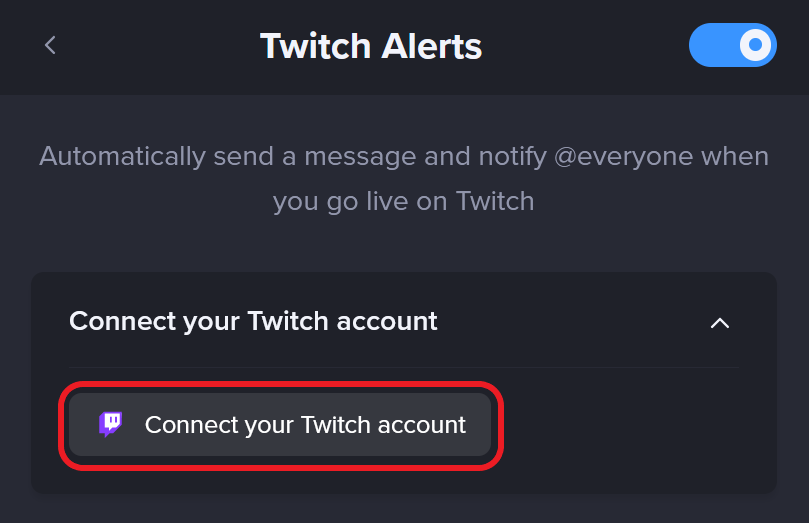
Next, select the New Twitch Channel option.
Here, you will be able to: Select the Twitch channel. Customize the message you want MEE6 to post. Select the announcement channel.


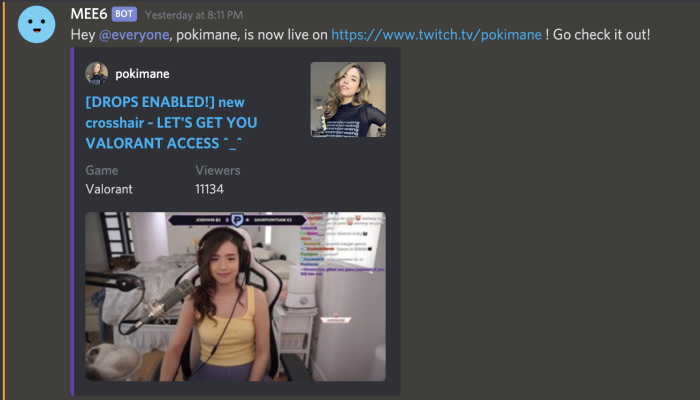
From now on, you will receive a message in your Discord server every time any of your favorite Twitch channels goes live!
Frequently Asked Questions - Twitch Notifications
How soon will the MEE6 bot make an announcement after a channel goes live?
You should see an announcement within a couple of minutes of the Twitch channel going live.
What do I do if I am getting duplicate announcements for a Twitch streamer?
If you are getting more than one message when someone goes live you may have added the streamer twice in the dashboard. Review your list of streamers and remove the duplicate.
How do I disable Discord announcements for a Twitch streamer?
First, go to the Dashboard and open Twitch. Next, locate the streamer to be removed and click on the 3 dots at the very right. Click on delete and a popup will ask: Are you sure? - Click Yes
How do I disable all announcements for Twitch? Go to the Dashboard and click on Twitch. Then, click on the toggle Active at the top right corner to disable it.
If you have any issues with the plugin, do not hesitate to join our support server! ✌️