

One of the best ways to highlight great content and spark engagement in your Discord community is by showcasing the messages your members love the most. With so many conversations happening every day, it can be hard for standout posts to get the recognition they deserve. That’s where the Starboard plugin from MEE6 comes in.
The Starboard plugin is designed to automatically collect and display the best messages on your server in a dedicated channel. When members react to a message with a ⭐ emoji (or any emoji you choose), the plugin can repost that message to your Starboard once it reaches a set number of reactions.

How to enable Starboards on my Discord server
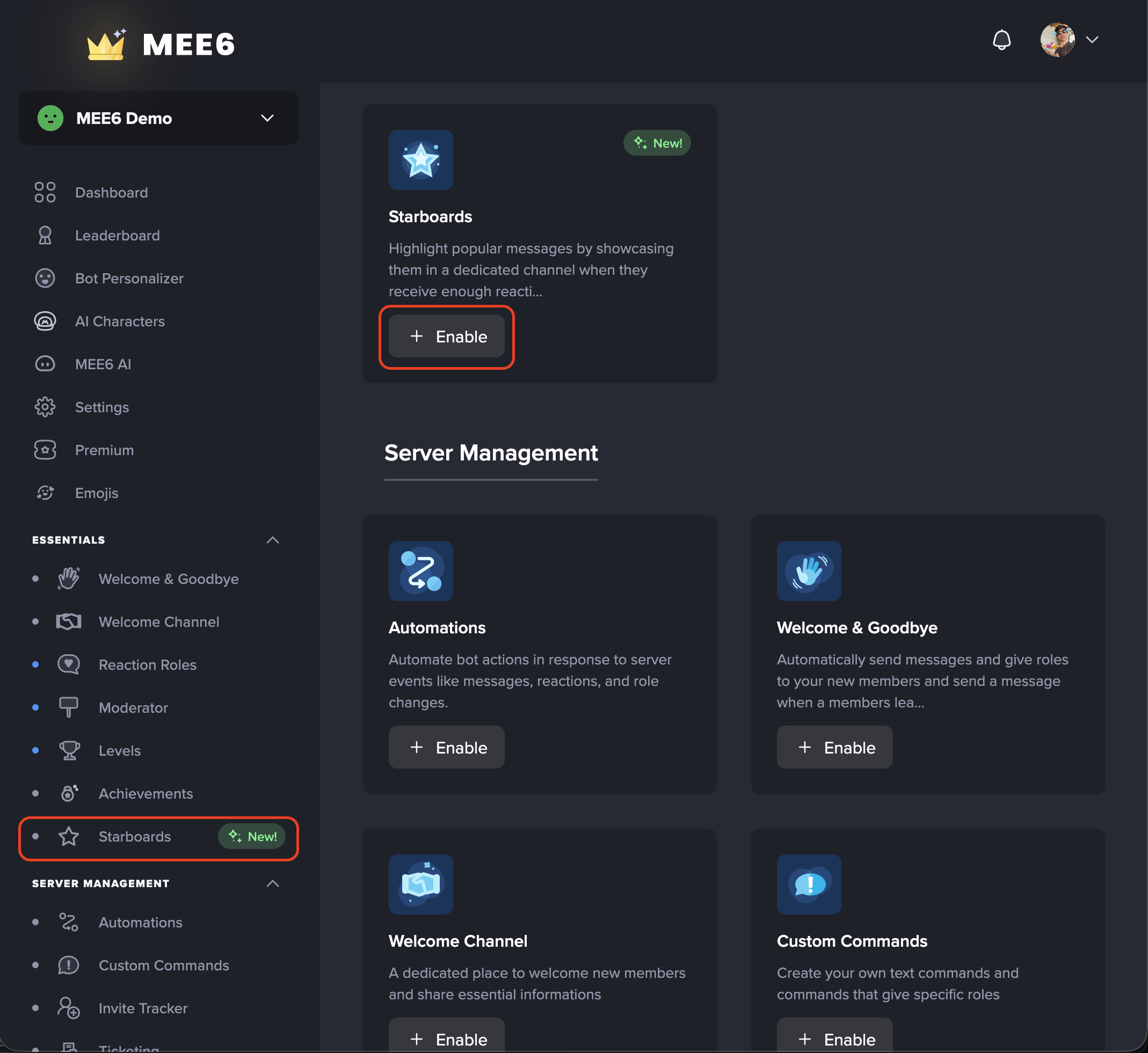
Open the Starboards Plugin 1. Go to the MEE6 Dashboard at https://mee6bot.com/dashboard/ 2. Select your Discord server. 3. Click on Starboards from the plugins list. 4. Activate the plugin if this is your first time.
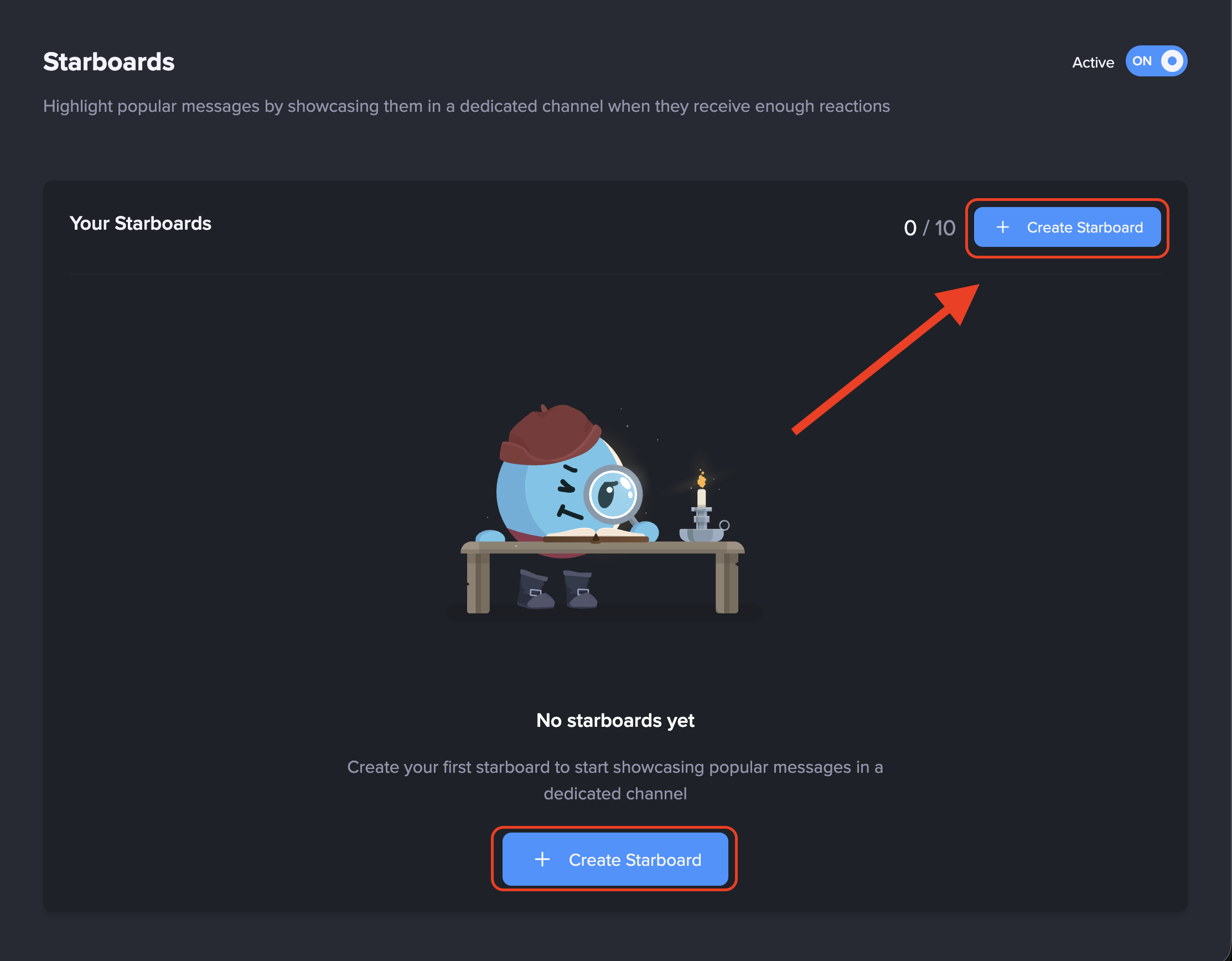
Create a New Starboard 1. Click Create Starboard. 2. Give your Starboard a clear name (for example: Memes or Highlights). You can create up to 10 Starboards.
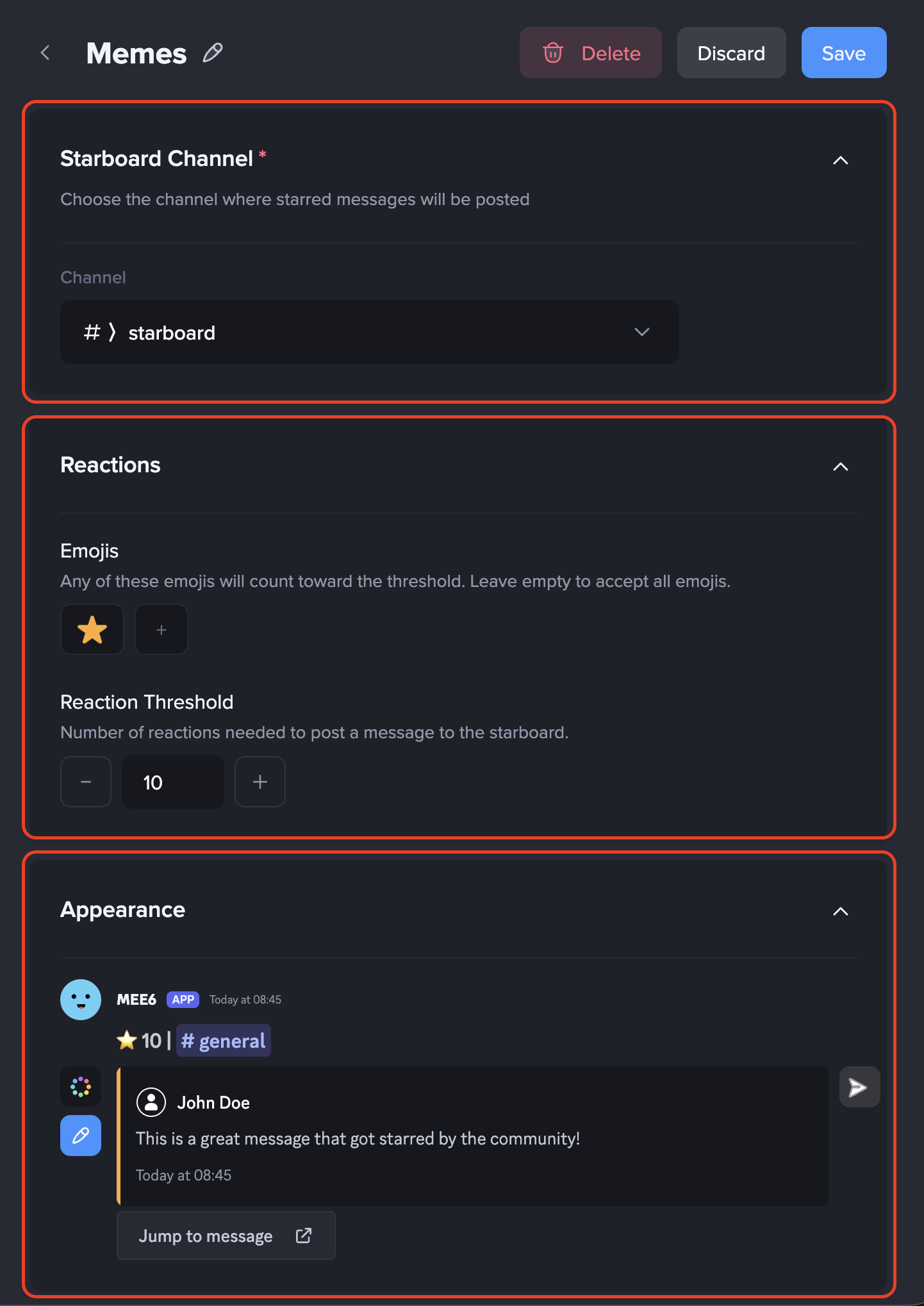
Select a Starboard Channel Choose the Discord channel where popular messages will appear. Messages that reach the reaction threshold will be reposted here automatically.
Configure Reactions • Choose one or more emojis that users will react with. • Set the Reaction Threshold (1–50 reactions). • Multiple emojis can count together toward the total. • If you remove the star emoji, any emoji can count — use this carefully.
Customize Appearance You can change how Starboard posts look: • Edit the embed design and text. • Use variables to show message information automatically. • Show user avatars and message images if needed. • Reset to default settings anytime. • Send a test message to preview the result.
Configure Behavior Behavior settings control how reactions work: • Allow multiple reactions from one user. • Automatically add emojis to Starboard posts. • Add only the first emoji when using multiple emojis.
Anti-Abuse Settings These options help prevent spam and misuse: • Remove messages when reactions drop below the threshold. • Add repost cooldown to stop reaction spam. • Ignore self-reactions. • Ignore bot messages. • Remove reactions automatically (use carefully to avoid problems).
Set Message Age Limits Control which messages can appear on the Starboard: • Minimum age: 1 minute to 1 hour. • Maximum age: 1 hour to 30 days. This keeps Starboard content relevant.
Add Restrictions You can limit participation by: • Restricting roles that can vote. • Choosing channels that are included or excluded.
Save and Activate 1. Click Save. 2. Your Starboard is now active and ready to collect popular messages.
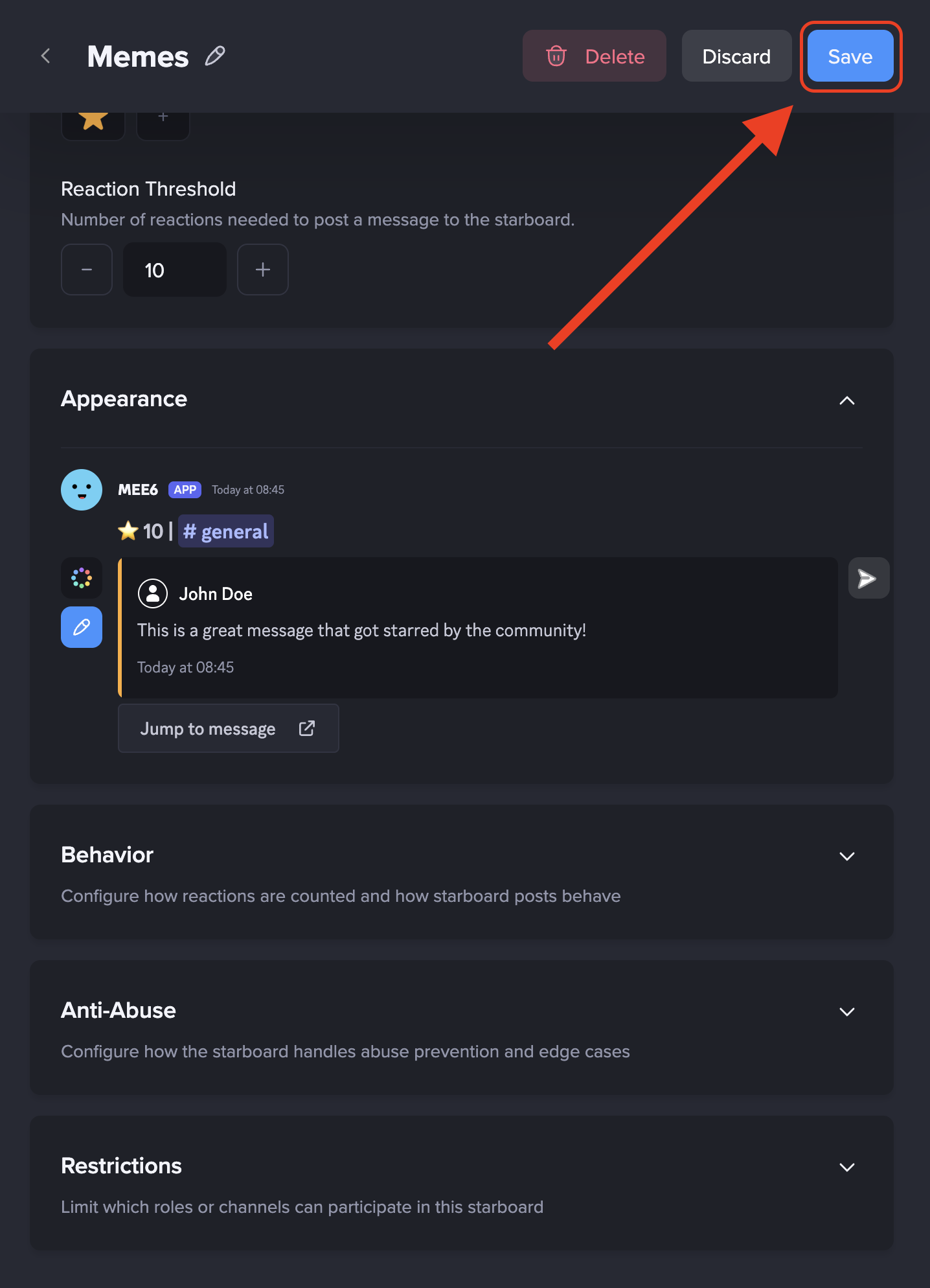
This is it. Your Starboards feature is now set up and ready for your community to start highlighting their favorite messages. You can head back to the MEE6 dashboard anytime to tweak the settings and customize it however you like.
Frequently Asked Questions - Starboards Plugin
Why do GIFs become static images in Starboard posts?
GIFs may appear as static images when they are reposted to a Starboard channel. This happens because of a Discord embed limitation, not a problem with MEE6.
When a message is added to the Starboard, it is sent as an embed, and Discord may not support animated GIF playback in embeds. Due to this platform limitation, GIF animations cannot be preserved in Starboard posts.
What happens when a message reaches the reaction threshold?
MEE6 automatically reposts the message in the Starboard channel with the selected embed style.
Can I use more than one emoji?
Yes. Multiple emojis can count together toward the reaction threshold.
Can users react to their own messages?
Yes, but you can disable this with the Ignore self-stars option.
Why should I be careful with "any emoji"?
If any emoji counts, messages may be added to the Starboard by accident. It may also affect Reaction Roles if not configured carefully.
How many Starboards can I create?
You can create up to 10 Starboards per server.
Can I limit Starboards to certain channels?
Yes. Use Channel Restrictions to include or exclude specific channels.
Can Starboard messages be removed automatically?
Yes. Messages can be removed if reactions drop below the threshold or if the original message is deleted.
Starboard Ideas
Top News of the Week
Joke of the Week
Memes
Tutorials and Helpful Tips
Community Suggestions
Art, Photo or Work Highlights