

The MEE6 bot will automatically assign roles in Discord when a user clicks on a Discord reaction or button. Here is a step-by-step guide to automating user permission assignments for your server by using the MEE6 bot’s Reaction Roles.
Set up MEE6 Reaction Roles to self assign discord roles
Log in with your discord account
Authorize the MEE6 bot to access your account
Select the discord server that you wish to add the MEE6 bot
Click on Dashboard and then Click on Reaction Roles
Click Yes to enable the plugin
If this is your first time adding a message skip to step 8, otherwise Click New Reaction Role
Fill out the fields
Click Save
Update discord permissions to allow "Read Messages" and "Add Reactions" for @everyone
Here is a more detailed step by step guide to setting up Reaction Roles in discord
Log in with your Discord account

Authorize the MEE6 bot to access your account
Select the discord server that you wish to add the MEE6 bot
Click on Dashboard and then click on Reaction Roles
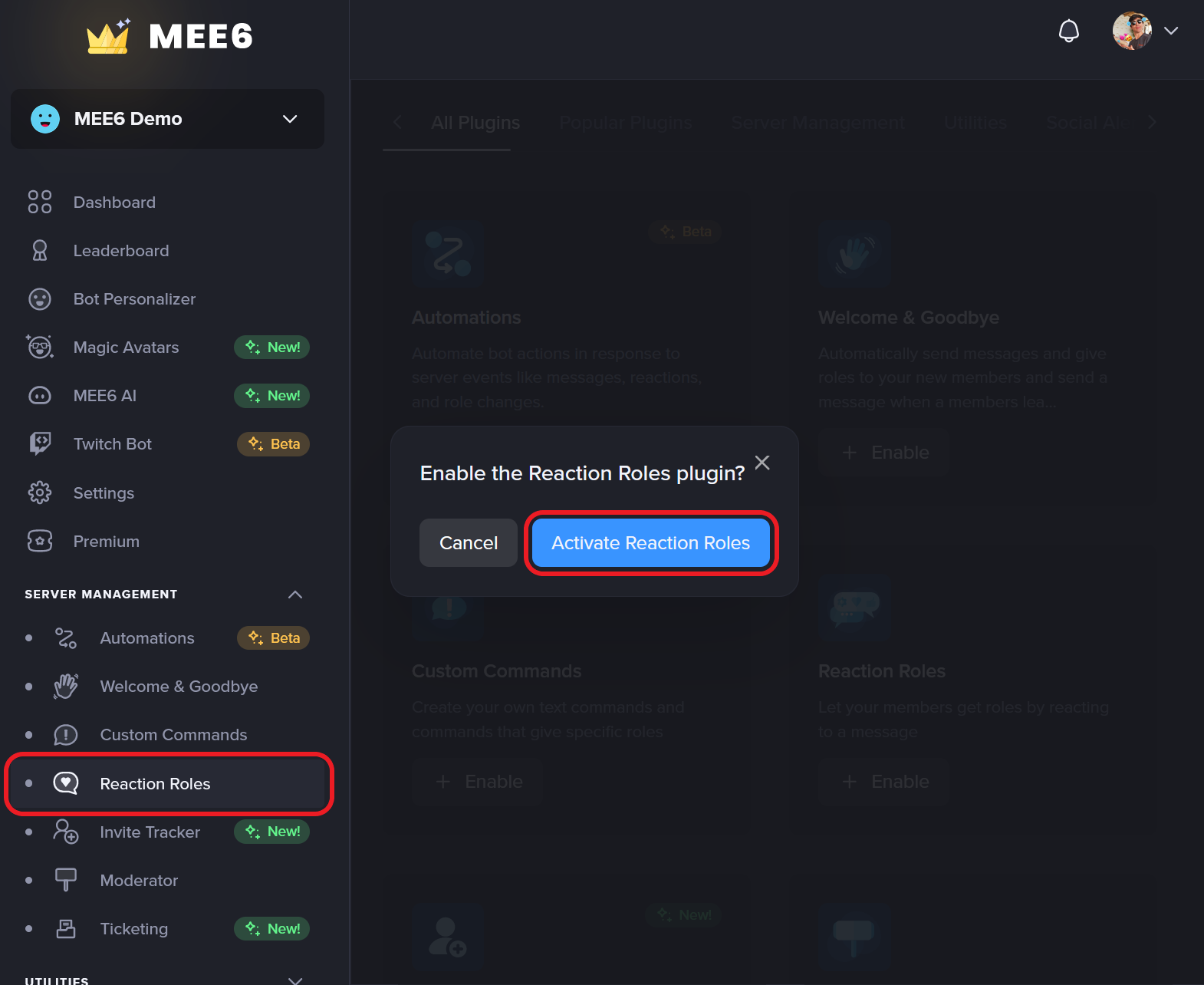
Click Activate to Enable the Plugin
Click New Message, and fill out the fields: Channel - Select where you would like the reaction roles instructions to appear, usually an #introduction or #read-first channel. Message - Provide your users with instructions for selecting their roles. You will want to include what each reaction that they click on will enable. Embed Color - Select the color you want to display on the side of the message. This adds a highlight to the message in a color of your choosing. Reactions and Roles - Choose between Emoji or Button. Emoji - Pick an emoji from your Discord server to be used as an image, and what roles it will grant. You can click the plus icon to repeat the process. Button - Select the role it will grant. Next, pick an emoji from your server to be used inside the button (not mandatory). Finally, you can give a customized name to the button and pick its color. In the end, save the reaction, before finishing the configuration.
Reaction Mode Default - Grants a role when users click on the reaction Reaction Mode Reverse - Removes the role when users click on the reaction, this is great for disabling certain server notifications. Allow members to pick up multiple roles - this can be enabled or disabled for each message.
Click Save. You will have a screen that looks like the picture below showing the Reaction Roles and the discord channel that the messages will show.
Update discord permissions to allow "Read Messages" and "Add Reactions" for @everyone: - Log into Discord and click on the server that you are enabling the Reaction Roles - Go to server settings - Click on Roles - Update the @everyone role to allow: Read Messages Add Reactions

Visit Discord's support site if you need more information on how to set up Discord permissions.
How do I disable the Reaction Roles plugin?
Go to the Dashboard and click on Reaction Roles
Click on the toggle Active at the top right corner
You will also need to go into the discord server and remove the post that the bot made.


Frequently Asked Questions - Reaction Roles Plugin
Can I make a verification system with Reaction Roles?
Yes, you are welcome to read this article we prepared especially for you: How to Use Reaction Roles as a Verification Gate for Your Community.
Can we use buttons instead of emojis to give out roles?
Certainly yes! Thanks to recent changes on Discord, we now offer three ways of using the Reaction Roles:
Emojis - Where the members will be able to get roles by clicking on the right reaction.
Buttons - Works similarly to the emojis, but gives more privacy since others can't see how many and who reacted to it.
Dropdown menu - An even fancier way to allow your members to select the roles they are after.
Is it possible to add more than one reaction per message?
The answer is yes. We allow our customers to add up to 20 unique reactions per message.
If you unlock premium, you will have up to 40 messages that allow you to add up to 20 reactions, giving you stunning 800 different combinations, all this to make sure MEE6 can suit your community needs.
Can I hide the Reaction Role message after a role has been given?
Yes, and you can do this by configuring the channel not to be visible to the given role.
Go to the channel settings, and head to the permissions tab.
Now, leave the everyone -> view channel in gray (/).
Next, simply add the role that was given out by the plugin and change the view channel to view channel (❌).
Note: Anyone with another role with the view channel permission granted (✅) will be able to see the channel, so the member must not have it.
If you have any issues with the plugin, do not hesitate to join our support server ✌️!