

The RSS plugin on MEE6 is a fantastic tool that allows you to stay updated with your favorite websites and blogs.
By using the RSS Feeds feature, you can automatically receive updates from your favorite sites directly to your Discord server. This short guide will walk you through the steps to set up and use the RSS plugin on MEE6.
How to send RSS feeds to Discord with MEE6
Enable the RSS Feeds Plugin To begin, visit Dashboard and select your Discord server. Scroll down to the Social Alerts category, and click on RSS Feeds. Click the Activate RSS Feeds button.

Create an RSS Feed After enabling the RSS Feeds plugin, click the Create a new RSS Feed button. This will open a new window where you'll need to provide the RSS link and select a channel for the updates.
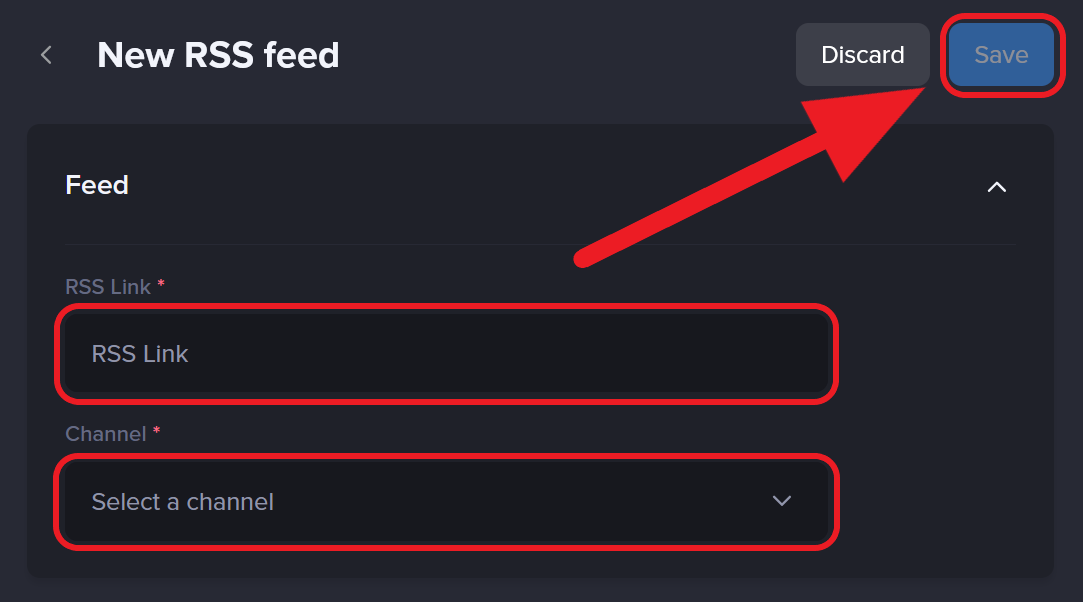
Understanding and Obtaining the RSS Link An RSS link is a web address (URL) that points to a specific site's RSS feed, which is an XML file containing the site's latest updates. To obtain an RSS link, visit the website or blog you want to receive updates from and look for an RSS icon, which usually resembles a radio signal symbol. Click on the icon to access the RSS feed URL. Alternatively, you can try searching for "RSS" or "Feed" on the site, or check the site's footer or sitemap for the RSS link.

Configure the RSS Feed Once you have the RSS link, paste it into the RSS Link field in the RSS Feed field. Next, select the Discord channel where you want the updates to be posted. This can be an existing channel or a new one created specifically for RSS updates.

Save and test the RSS Feed After completing the configuration, click the Save button. MEE6 will now start fetching updates from the specified RSS feed and posting them in the selected Discord channel. To ensure the setup is working correctly, you may want to monitor the channel for a short period to confirm that updates are being posted as expected. If you encounter any issues, review your settings and make any necessary adjustments.
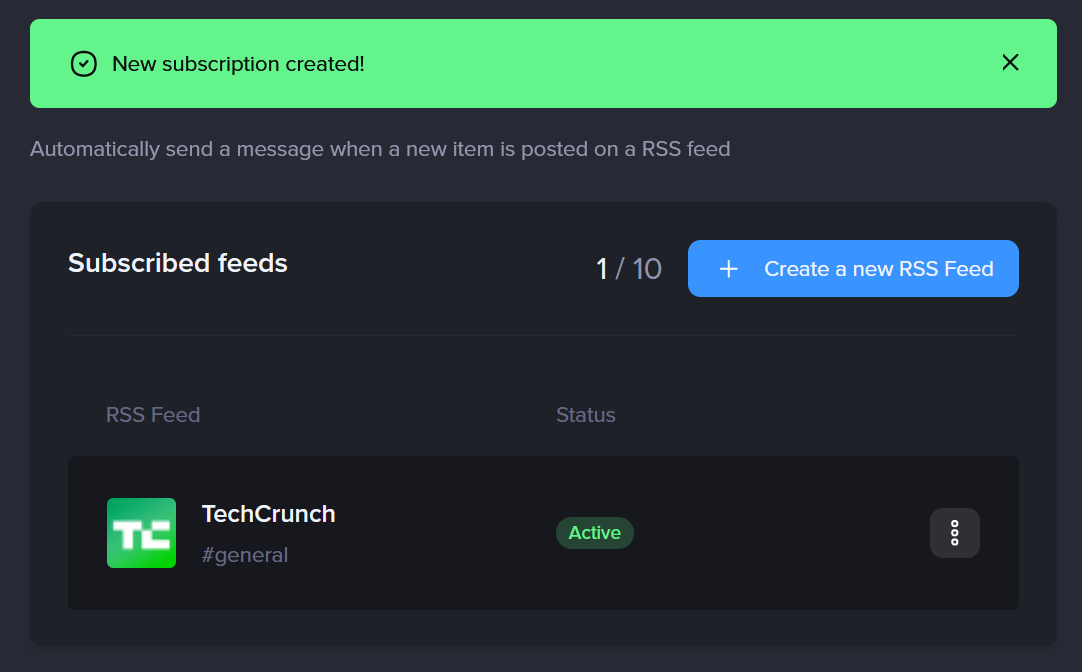
Add Additional RSS Feeds (Optional) If you want to add more RSS feeds to your Discord server, simply repeat Steps 2-5 for each new feed. Remember to assign each feed to the appropriate Discord channel to keep your server organized!


Frequently asked questions - RSS Plugin
Am I able to follow beyond the feeds?
Yes! When searching for RSS on the website page source, you can follow the /feed but also /feed/podcast or any other available source (it will always be after href=).
Can we send the RSS feeds to any channel in my Discord?
Sure thing. You just need to ensure MEE6 has enough permission to send messages, attach files and embed links, select the channel when adding the RSS URL link and the Bot will do the hard work for you.
If you have any issues with the plugin, do not hesitate to join our support server! ✌️